Monday, March 10, 2008

Keep Dashboard Widgets on your Desktop.

Today Dale and I were talking about iSlayer's iStat App. Dale was messing around with the options and preferences and could not seem to get some of the functionality to work. For instance he wanted to see real-time temperatures and fan speeds and all that. After checking the appropriate boxes and even closing and re-opening the program we could not seem to get the fields to show up (though it did show up just fine in the iStat Pro Widget).

So like usual, when having a problem with a piece of software, I thought about it for a second. I had then remembered seeing a post about keeping your Dashboard widgets on your Desktop. Now personally I love the idea and functionality of Dashboard. I used to be a big fan of Konfabulator (now called Yahoo! Widgets Engine) because of it's ability to show the Widgets on your Desktop (rather than hitting a button to take you to the "Heads Up Mode") but now I see you beauty of Dashboard. For the most part, widgets are things that you need to see rarely, and in short durations (however this has exceptions), so I think Apple hits the nail right on the head with Dashboard. Another reason for my love of Apple's approach is the fact that my Macbook's Desktop's Resolution is nothing too special (coming in at 1280x800). Having so little space, I have no room to keep widgets cluttering my desktop. But this is merely personal preference and if I were someone like Dave, with his 24" iMac (1920x1200), I might think differently on this issue.

Here's where the solution comes into play. There's an awesome little hack to enable widgets to be on your desktop at all times. Simply open Terminal and then type in the following command:


defaults write com.apple.dashboard devmode YES


After entering this command you'll need to restart the Dock by entering following command:


killall Dock


After you've down both commands you can simply open Dashboard (F12), click and drag/move around the widget, continue to click and drag the widget and hit F12 again. When you've got it where you want it. Drop it (let off on the mouse/track pad) and it should stay on your desktop. To get it back in Dashboard, simply do the same click/dragging in reverse order. The reason why I stressed the dragging is because after doing a few tests of just clicking the widget while attempting to do this, the widget seems to get locked and lost in a layer that is neither the Dashboard nor the Desktop, and the only way to be able to grab the widget again is to invoke another "killall Dock."


Try it out, hope you like it.

Note: I have not tried this out on Leopard yet, but works perfectly on our office Macbook with Mac OS X Tiger 10.4.11. I'll have to try it out on my 10.5.2 Macbook later tonight. Turns out it does work on Leopard as well!

Friday, February 22, 2008

Bi-Directional iCal/GoogleCal Sync with BusySync!

Over the last couple of years my uses for Google Calendar have increased exponentially. It's an amazing web-app that mimics the looks and functionality of iCal. Personally Google Calendar was god-sent and I've been using it since the initial release back in March of 2006. I store everything in my Google Calendar; school assignments and test dates, work appointments, family gatherings, birthdays, or just things I need to remind me self to do. Even when I got my Macbook in the Fall of 2006 I continued using Google Calendar over iCal because of it's convenience. If I'm ever away from my Macbook and yet I need to know the date and time of a particular appointment, I just pop open a web-browser at a friends house, and log into my Google Calendar. I've done this countless times and can't even start to think of how many times this has saved my butt.

Although I prefer Google Calendar over iCal, there are a few very cool things that you can do thanks to the integration of iCal in Mac OS X. For example, you can schedule events to run tasks, scripts, or even open certain apps. You can also use such apps as Anxiety to create and check off to-do lists extremely easy. Another big reason that I wanted iCal/Google Cal synchronization was for the iPod support. Some day, if I ever get an iPod, I can sync up all of my iCal events on my iPod. This would make things such as looking up appointments on the go so much easier. But even when I do get an iPod I won't ditch my Google Calendar. I highly doubt I'll carry my iPod everywhere I go so having Google Calendar is still an excellent fall-back option. On the other hand there are a lot of Google Calendar-exclusive features that I've grown to love, such as the SMS alerts. With Google Calendar you can setup your Calendar to notify you of events coming up via: SMS (Text Messages)! A practical example of this is for my Birthdays Calendar I have it set to text message me 12 hours in advance of anyone's birthday so I can make arrangements accordingly since I am terrible at remembering birthdays. So clearly, there are pros and cons to both iCal and Google Calendar, and I wanted so badly, to figure out a way to have the best of both worlds. My quest for a good iCal/Google Calendar Sync app started.

The first app that I stumbled upon was Spanning Sync. When I first found it I was so incredibly happy. I had no idea that apps like this even existed, but turns out there's a pretty big demand for such a service. I loved everything about it, loved the icon, I liked the website, but then I saw the price. $25 bucks for a 1 year license, and $65 bucks for a Full Lifetime License. Now personally, I'm the kind of person that hates buying "subscription" licenses. If I'm going to spend money on a piece of software, I want it for the lifetime of the product! However, after reading a little bit more into it, I do understand why the high price. Turns out Spanning Sync uses a Middle Man server to do the communications between your computer (the client) and Google's servers. At first I didn't think this was too bad of an idea, but then I started to wonder about privacy issues of having my personal data on this 3rd party server.

Time went on and I kept putting off Spanning Sync. The price was a little discouraging and the Middle man server was a bummer. I then found gSync. I'm not sure exactly when gSync came out, but I can only assume that with it's lower price tag (about $20 U.S. Dollars) it released solely to compete with Spanning Sync. The cheaper price was much welcomed but I started hearing issues of duplicate events and also Leopard compatibility issues. That was enough to make me hold off even longer.

I then heard about BusySync joining the iCal/Google Cal bi-directional synchronization game. After seeing a very user-friendly video of BusySync being demonstrated at Macworld 2008, I started to get very excited. The first Beta of BusySync 2.0 (first version to integrate Google Cal synchronization) was released on February 8th, 2008. About a week later I went to their site to investigate and learn more about the people behind BusyMac and their product BusySync. I was very surprised to see that the developers (only two of them) had actually made a syncing calendar app back in the days of Mac OS 7. I was impressed! Also two developers meant that this could result in a higher quality finished product. I figure that the less people, the easier the two could collaborate and there wouldn't be as much confusion as their could be in a large development team. Lastly what I liked about BusySync was the fact that, not only was it an iCal/Google Calendar synchronization app, but it also syncs up iCal's across a LAN. This was very exciting, for if someday I get a second Mac, I know I'll want the calendars synced up! I was sold, I finally bit the bullet and purchased a (lifetime!) license and proceeded to download the latest beta.

After now having used BusySync for the past week, I love it! It just seems to work. Setup was so incredibly simple. I like how it's just a little icon that sits in your System Preferences Pane, and not some obnoxious dock or menu icon. It's one of those things that you can just set and forget, and with the icon residing in the Preference Pane, that is exactly what you can do.


Setting up Google Calendar synchronization was super easy as well. All you have to do is go to the BusySync settings in the Preference Pane, and then click on the "Google" tab.


You then enter your gmail username, your password, check if you want to use SSL or not, and then the interval in which you want BusySync to communicate with the Google Calendar Servers to see if there are updates.


Once you have that done simply check the Calendars that you want to sync with your iCal and it does the rest for you.


One really nice thing about BusySync is their "Log" tab. This shows you all the activity that BusySync is doing. This is a great tool if you're curious on how BusySync works and will be a great troubleshooting tool if I do happen to run into some issues (which I haven't yet!).


Another nice thing is the "Reset" tab. This gives you restoration options and the ability to completely reset all BusySync options and remove all Calendar subscriptions. I have not needed to use these since I've had a very enjoyable experience so far, but definitely a comforting feeling knowing that these features exist.


I had only one issue initially and it's so tiny that you're probably going to laugh. At first I saw no way of just plain registering the app right off the back. I already bought a single license for the app and was all excited to right away register it since I can be rather stingy (see: broke) and tend to lean towards freeware/open-source software. Right after installing the app I was notified that it was a trial and that i had 14 days or whatever and then I'd have to register. I searched a bit and did not see a simple "Register Me!" button. Well anyways, a few days after using BusySync a new beta (2.0b4) released. After installing it I was very excited to see a simple "Register..." button located right on the main page! This was my only issue of BusySync and I'm very happy that this was "fixed" (if you could really call it that) so quickly!

Overall I am more than happy with this app. This was the missing piece to my Google web-apps-loving, Mac OS X-using life. This is incredibly nerdy to say, but I can honestly say that I can now sleep better at night. I've spent a lot of time trying to find comparative reviews of gSync and SpanningSync and could not find much. I took a gamble with this very new to the scene app and I've had such a great experience. If these guys can make an app, that is so early in it's beta stages, work this well, they've got to have some mad programming skills.

Just wanted to write this short little review for anyone who is also wondering which iCal/Google Calendar sync app to use, this one definitely gets my recommendation.


UPDATE: Please note that BusySync is still in Beta and your experiences may not be as painless as mine was, especially if you're migrating from another app such as SpanningSync or gSync. If you know anything about me you know that I constantly backup my important data and some might say it's to an excessive, obsessive level. But anyways just wanted to drop a tip to all of you and show you a post which explains the easiest way that I've stumbled upon to backup your Google Calendars! The post actually explains how to them import these calendars into iCal, but ignore this if you are thinking about setting up a Bi-directional Syncing App since this would just be a redundant and dead (see: static) copy of your calendars since it would lack the actual "Syncing" functionality. Hope this helps some of you out!

Thursday, February 14, 2008

The Format War Officially Over?

Ladies and gentleman, it looks like Blu-Ray has finally won the High-Definition format war. According to this engadget post Toshiba, who was one of the pioneers of the HD-DVD format, is expected to discontinue the production of HD-DVDs and players in as early as the next coming weeks. This is great news for anyone who was holding off just a tiny bit more in order to see what was going to happen. This plus the Writer's Strike being over, has made for a pretty eventful week!

Tuesday, February 5, 2008

A few Useful Environment Variables for Windows.

Lately I've been doing a fair bit of scripting. I made several scripts for the Overseas Fair in order to make my life easier, when doing repetitive tasks such as, clearing Mozilla update Cache out and modifying C:\WINDOWS\system32\drivers\etc\hosts. Sure these aren't very challenging tasks by any means, actually most only require a few clicks and to type a few lines of code, but this can get very annoying if done over and over and over.

At work I've made scripts for app deployment, backup, checking logs, synchronizing files, pinging computers, and scheduling automated tasks such as Spybot to run once a week. One of the easiest ways to make these scripts general and not have to hard-code in many different cases is to use environment variables.

I've compiled a short list of environment variables that work with Windows XP, and I assume that most of these will work with Vista as well, but have not yet tested them out.

%APPDATA% - Returns the current user's Application Data folder path. This is really useful if you simply want to navigate to the current users "Application Data" folder, without having to turn on "show hidden files and folders."

%USERPROFILE% - Returns the current user's home directory path. Again incredibly helpful for scripting and/or simply navigating around. Use this in conjunction with the "Windows Logo + R" tip and type "%USERPROFILE%" to quickly open the home directory in a windows explorer window.

%COMPUTERNAME% - This one is pretty explanatory, but it returns the computer's name. This is extremely helpful when creating special case scripts that you only want running on a certain list of computers. You can implement IF-statements, to add logic to the scripts.

%USERNAME% - Returns the current username that is logged in. Just like the %COMPUTERNAME% variable, the username variable comes in good use when making special cases to allow scripts to run only if a particular user or users are logged in.

%DATE% - Returns the current Date (example of output: Tue 02/05/2008).

%TIME% - Returns the current Time (in 24 hour format).

%HOMEDRIVE% - Returns the Driver letter that the current logged in user's home directory resides on. (in most cases this will be C:).

%WINDIR% - Returns the location of the WINDOWS directory (such as C:\WINDOWS). These last two are great for making sure your scripts are generalized and not so specific, that they don't function correctly if thrown into an environment where the WINDOWS drive is actually D: or E: and so on.

Most of these I knew from previous scripting and Windows XP experience, but a few I just found out about thanks to this post.

Hopefully some of these you didn't know and hopefully you can put these to good use sometime.

Friday, February 1, 2008

A few Windows Tips and Keyboard Commands.

This week + weekend marks Career Service's 32nd Annual Overseas Recruiting Fair and I've been back and forth all week helping maintain the technical parts of it. To say the least it's been quite a headache, the computers don't really seem to be cooperating. We found a few write-ups on the internet about changing a value in the Registry to "3" to keep the computers always on and not go to sleep, but unfortunately about half of them have been doing this properly. However the tech part of the fair hasn't been a complete nightmare. My scripts to temporarily block Teachers from the database system, and then revert back worked seamless and I've really enjoyed the new information that I gained from creating such scripts. Another plus is that I have acquired a few new tips and keyboard commands that I find incredibly productive.

First keyboard command that I'm starting to use religiously was actually shown to me by Dale. "Windows Symbol + R" prompts you with a "Run" window. From here you can quickly open up something like cmd.exe, which I opened probably a million times over the last few days.

Another thing that I learned is the fact that you can open a folder location from this. For instance, say I wanted to check the current "hosts" file to see what is being blocked, I simply push "Windows Symbol + R" to open a Run window, and then type "C:\WINDOWS\system32\drivers\etc\". This is much quicker than using the mouse to go to My Computer, then clicking on C:\ then clicking on WINDOWS, then system32, etc., etc., you get the idea. This is is very similar to why I love Terminal in unix/linux/Mac OS X because you can very quickly just cd into any directory. Though you can cd in cmd.exe, you don't get the convenience that you get in *nix/Mac OS X. For example, in Mac OS X, I can simply enter the command "open ~/Documents/School" and it will open the School folder. Unfortunately Windows' cmd.exe does not have this open command, but I do also like this "Run" alternative.

Another keyboard command that I like a great deal, and use along with the tip stated above is the "Ctrl + W" keyboard command. In Mac OS X this is an amazingly powerful and extremely quick command. It essentially closes the current in focus window/tab. For instance, say I have 5 Safari windows open. Say I'm done reading the article I'm currently looking at and just want to close the window, but I don't want to completely quit out of Safari because I have more items in my Google Reader. Simply push "Apple + W" and it will close the current Window. This also works with Tabs in Safari. Say you have a 20 tabs open and you're done with that page, simply push "Apple + W" and Safari closes out the current tab. As far as I know, it works with just about every App on Mac that I've come across. Unfortunately the same cannot be said about Windows. It seems to work in most apps but not all. Still the fact is it works with Windows Explorer windows. Personally this makes the "Run" technique a million times better because you can simply open, view the contents of any folder you want and then close it all without touching your mouse. Obviously this comes in handy when you are doing a lot of repetitive tasks such as the ones I was doing yesterday.

This last one I've always known about, but always seem to forget the exact syntax. After doing at the fair probably more than any other command, I don't think I'll ever forget it but just feel like posting it for kicks. It is a very powerful command, especially when you're working in an environment where the computers are incredibly locked down and you don't want to deal with logging off, then logging on to an administrative account, then logging off, and logging back on, over and over. So without further a due the "runas" command is as follows:

runas /u:administrator "cmd.exe"

Obviously, change "administrator" to whatever user you want, though administrator maybe what you want. And lastly change "cmd.exe" to any command you want to do. You'll then be prompted for the administrative (or username that you choose) password and then should be good to go.

Tip: If you do happen to get an error saying "... is not a valid Win32 application." such as when attempting to "runas" compmgmt.msc (the Computer Managment window), or desk.cpl (the Display Properties window) simply do the "runas" command and run "taskmgr". From here you can then go to "File," and then "New Task," and type "compmgmt.msc" or "desk.cpl".

Wednesday, January 30, 2008

A short little Apple rant.

Update (2/24/2009): Since writing this rant a little over a year ago, Apple has finally adopted a new technology, though not HDMI, which I was hoping for. Apple has implemented this new MiniDisplay port into it's new line of laptops (as well as their NEW Cinema Display which I ranted about in the original post) and says that they plan on implementing the new Mini DisplayPort into their entire line of Macs soon. It's nice to see that Apple finally adopted a new technology over the aging DVI spec. The new Mini DisplayPort supports higher bandwidth, than DVI and HDMI though it does lack the convenience of having both the audio and video in one connection like HDMI. Though the more I think about this "convenience" the more I think it might not have been so convenient. For example, yes for TVs and Home Theater applications, HDMI is incredibly convenient. Both audio and video over one cable is both elegant and easy for your average consumer to hook-up. However, I mostly use a set of 2.1 or 5.1 speakers combined with my computer setups and having the audio and video streamed to my monitor may just add another bit of confusion into the setup, and that is how to get the audio then from the monitor, to output to the speakers.

Lastly it's nice to know that Apple is continuing it's tradition with adopting industry (and often times open!) standards. According to this Ars Technica post, Apple is offering free licensing for the new Mini DisplayPort spec. This is exciting news and hopefully we'll start seeing some third party cables, adaptors, and monitors that will start integrating the spec!


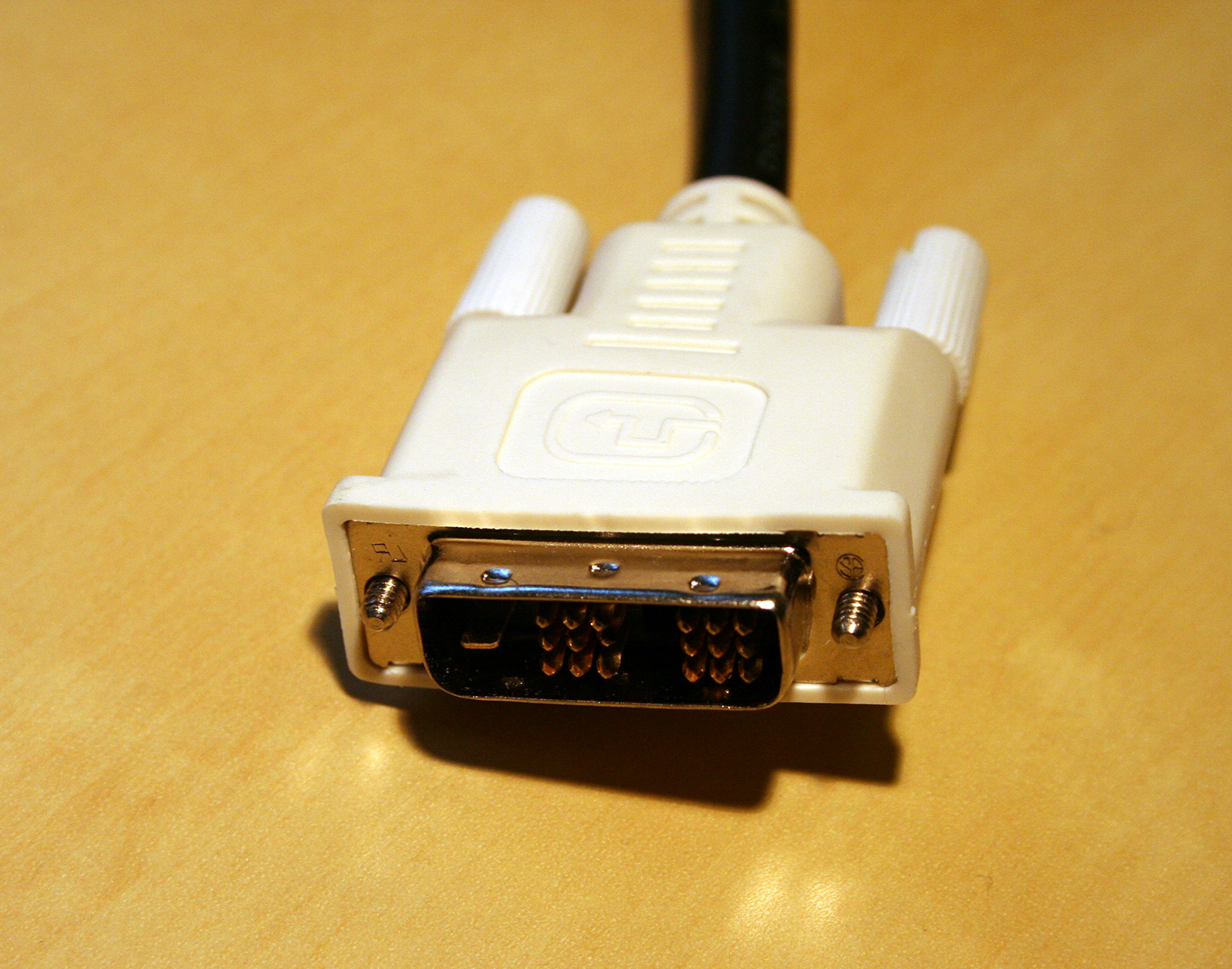
Original Post (1/30/2008): (As mentioned in earlier posts, one of the greatest parts about Apple is the fact that they are constantly raising the bar when it comes to being the most up-to-date with the latest industry standards. Whether it be AAC, h.264, USB, Firewire, Flat Panels, Bluetooth 2.1, the list goes on. So WHY Apple, WHY have you not implemented HDMI into all of your products yet?! You'd think that, Apple, who's often been criticized for putting form before function, should be all about implementing HDMI. HDMI is a single interface that can carry both High Definition video, as well as 7.1 surround sound audio, all in one tiny package, that is remarkably smaller and sleeker than it's predecessor DVI.

So let's recap here, smaller connection, no screws making it look like an old legacy connection (see: Parallel Port), higher bandwidth, single cable rather than two, it just makes sense to me.

An argument that one could make about part of my last statement could be the move to Mini-DVI and Micro-DVI. If you take a look at Apple's line of computers, the iMac, Macbook (though not Pro) and Macbook Air all incorporate a physically smaller connection than your regular old DVI connection. These models incorporate Mini-DVI (iMac and Macbook) and the newly announced "Micro-DVI" (Macbook Air). While this is a nice attempt at making DVI small and pretty, (and thank god it loses those screws!) this is still a pretty crappy solution since this means shelling out an extra $20 bucks for an adaptor. Some might say that these interfaces are proprietary, I don't know if I'd go as far as to say that much, but they definitely do seem to only be found on Apple computers (which I guess you could say is essentially proprietary). So c'mon Apple, what happened to industry "standards."

Another argument that some people say is that this might cannibalize or discourage sales of apple's own AppleTV, since the new Front Row 2.0 resembles and functions very similar to that of the first generation AppleTV (generation that existed during the release of Leopard). But I think that now Apple has released AppleTV "take 2," which offers a lot of new functionality, such as "Computer-Free" downloads, rentals, etc.. This furthers the gap between Front Row 2.0 and AppleTV, and this almost completely destroys this argument.

Lastly, Apple's Cinema Displays are so out-dated it's pretty sickening. Back when I was shopping around for an LCD, back in March of 2006, I lusted for an Apple Cinema Display, but knew that I couldn't afford the hefty price tag. At the time the price for the introductory 20" Cinema Display was I believe $799 but I could be wrong on this. This compared to the Dell 2005fpw which I ultimately ended up with that could be picked up for as low as $500 at the time, the choice was pretty much obvious, considering both displays used the same LG panel inside. I could go on and on explaining why I chose the Dell over the Cinema Display, and I could even write an entire post about my beef with Apple's Displays, but that will have to wait for another time. Anyways, Apple's prices and specs of their displays are outdated. Where's the built in iSight? I'm hoping that sooner rather than later we see a revision to this Cinema Display line and then maybe, just MAYBE this will finally push Apple over the edge and adapt HDMI, if even only just as an option.

Wow that ended up being a little longer than I had expected.

Friday, January 18, 2008

Macworld 2008 Recapped.

Well Macworld 2008 came and went, and overall I was pretty satisfied with everything announced. I was extremely happy to see that 2 or 3 of my hopes/predictions did end up coming true!

-First Solid State Disk Options

I was extremely happy to see that Apple FINALLY introduced Solid State Disk as an option when configuring the new MacBook Air. Though a little steep price-wise, this is definitely a step in the right direction, and slowly but surely will start to see high capacities, which hopefully will result in price drops. I truly believe that Flash or Solid State Disk's are the future and I recommend going this route if at all possible in any sort of portable device.

-Ultra Portable Macbook

Apple released the Macbook Air on Tuesday, and it looks pretty slick. It's a bit on the pricey side, coming in at $1,799 but I truly believe that this is mostly because of the such small form factor. I love where apple is going with this. Apple's always ahead of the game when adopting and killing off standards; USB and Firewire standard before most PC's even had it, Killing off the Floppy Drive with the translucent iMacs, Bluetooth Standard across the whole Mac line, the list goes on and the Macbook Air is another perfect example. One of the reasons why the Macbook Air is so sleek and tiny is because it's lack of ports. The transition from the iBook to the Macbook, meant killing off the 56k modem, and now Apple has done it again by killing off the Ethernet Port (optional USB adaptor). Once 802.11n is finalized later this year (hopefully!) I don't think people will even miss the Ethernet port.

However there are a few things I do not like about the Macbook Air. For starters, the memory is soldered into the motherboard and therefore can not be upgraded. Again, this is probably just a form factor issue, also this would make the Macbook Air a little less seek. Lastly, the battery is not user-replaceable, so whenever the user is going to want a brand new battery, they'll have to ship it in and pay $129 bucks for a new battery. Thank God there is no cost for labor.

-iPod Touch Updates

Unfortunately there was no updates to the iPod's capacities, but there was an update that is almost equally as exciting. Apple FINALLY updated the Apps available on the iPod Touch (-not iTouch!). Apple has now included the following Apps into the iPod Touch; Mail Client, Google Maps, Stocks, Weather, and Notes. As if I didn't already want an iPod Touch pretty badly this pretty much sealed the deal for me, and I will hopefully be getting one of these as soon as possible.

-Time Capsule

One thing that was a complete surprise to me was the introduction of "Time Capsule." Time Capsule is essentially a NAS. It is aimed towards users who want to use Time Machine to back up their entire family of Macs wirelessly. I think it's a pretty clever name. It is an Airport Extreme Base Station (Apple's Wireless B,G,N Router) with a "Server Grade" hard drive inside. Personally this was one of the more exciting announcements of the whole entire keynote, since I'm currently in the market for BOTH a new wireless router and an external hard drive. I was quite surprised with the prices as well. The 500GB Time Capsule will cost you $299, and the 1TB model will cost you $499. If you do the math these are pretty good prices considering the Airport Extreme Base Station was $179 prior to the release of Time Capsule. This mean's that they are throwing in an external drive for $120 bucks for the 500GB model and $320 bucks for the 1TB model. Doing a quick search at Amazon shows that this is an amazing deal, not to even mention that it's all integrated into one product!

With Leopard being quite a big success right out of the gate, the iPhone SDK just around the corner, and the latest Mac lineup transformation, I think 2008 will be a pretty exciting year for Apple.